


Why is there a software restriction on the mobile phone I availed with a Product Loan?
If you availed a mobile phone through a Product Loan, your device automatically includes a device link as part of your loan agreement. This software restriction is a security feature that protects the device if it is lost or stolen and helps keep it in good standing until it is fully repaid. As long as you make your payment on time, this restriction will stay inactive.
A device lock may limit access to your phone if your account becomes overdue. Once your overdue amount is paid and your account is updated, the lock will be removed.
Your phone should unlock automatically within 24 hours after we receive your payment and clear your overdue amount.
Yes. The software restriction is included in the terms you agreed to when you applied for a Product Loan. It will not be activated unless your payment remains unpaid.
No, your privacy remains protected even with the software restriction. It will not be able to access your contacts, photos, messages, or any other personal information.
If your outstanding balance remains unpaid for an extended period of time, access to some non-essential apps (such as certain social media or messaging apps) may be temporarily restricted.
However, calls to emergency numbers will always remain available.
You can still pay your loan through our available payment options. How can I pay my loan?
If you need more help, talk to Customer Service via in-app chat. We can send you a payment link.
Your phone should unlock automatically within 24 hours after we receive your payment and clear your overdue amount. Keep your phone connected to the Internet so it can receive the update.
To check for the update from the lock screen:
Connect your phone to Wi-Fi or mobile data
On the lock screen, tap Sync
Wait for the update to apply
If your phone is still locked, tap OK and try again later. You can sync up to three times a day.
If syncing does not work:
Restart your phone
Connect your phone to Wi-Fi or mobile data
Open the dialer
Enter *#*#120#*#*
Wait for the green check mark
If you do not see the green check mark, enter *#*#125#*#*
Phone still locked? Talk to Customer Service via in-app chat so we can help resolve your issue.
You can only sell or transfer your phone once the loan is fully settled. If you sell or transfer the device while the loan is still active, the software restriction will remain and prevent the new user from gaining full access to the phone. To prevent any additional issues, we recommend fully repaying the loan first before transferring ownership to someone else.
If you can't access your phone even if you’ve already repaid your outstanding balance, or continue to experience other issues related to the device lock, please talk to Customer Service via in-app chat so we can assist you.
To prevent the software restriction from activating, please pay on time based on your loan schedule. You may pay using a wide range of options available in the Salmon app.
If you need to report a stolen phone, please inform customer service via in-app chat or message our official Facebook, Instagram, or TikTok as soon as possible. We can help block the device and assist with the investigation, but please take note that you are still responsible for settling the remainder of your loan.
Even if your device is damaged or no longer usable, you are still required to continue your payments until the loan is fully settled.
No. We do not accept returns for mobile phones that have already been used. Payments must continue according to your agreement.
Open the Salmon app. In your Product Loan details, you’ll see your overdue amount and due date.
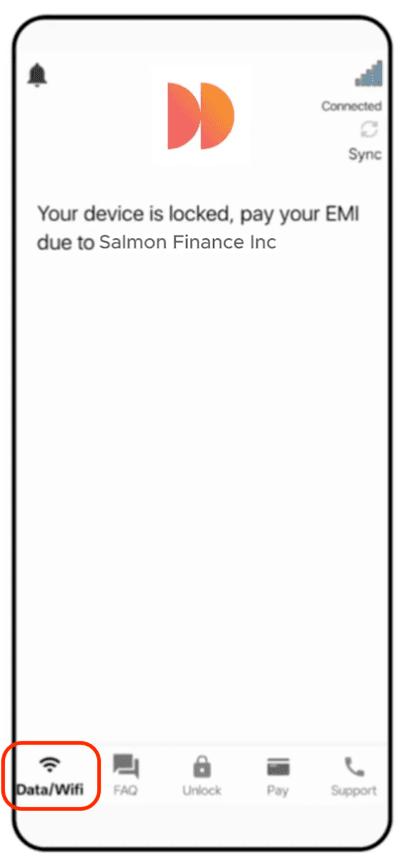
You can still open your Wi-Fi settings from the lock screen.
| 
|
Once you fully repay your Product Loan, your phone will receive an update that lets you uninstall Device Pro. Your phone needs to be connected to the internet to receive it.
1.Connect your phone to Wi-Fi
2.Open the dialer
3.Enter *#*#120#*#*
4.Wait for the green check mark
5.If you do not see the green check mark, enter *#*#125#*#*
6.Go to Settings
7.Tap Apps
8.Tap Device Pro
9.Tap Uninstall
The Uninstall option appears only after your phone receives the update from Salmon. If you do not see it yet, check your internet connection and try again. If you still can’t remove Device Pro, talk to Customer Service via in-app chat.
If your phone can connect to the internet, you do not need a one-time code. Connect to Wi-Fi or mobile data and wait for your phone to complete syncing.
If your phone cannot connect to the internet at all, contact Customer Service using another device through any of our official channels. We’ll guide you through the next steps and provide a one-time code if needed.
•Facebook: @salmonphilippines
•Facebook Community: Salmon PH Community
•Instagram: @salmonphilippines
•TikTok: @salmonphilippines
No, do not factory reset your phone while it’s locked. This will make your phone permanently unusable.
If you already reset your phone or need access to a phone feature you can’t use while it's locked, talk to Customer Service via in-app chat so we can help.